Start with the receiving form, not a familiar photo preset
A passport-style photograph is not one universal file specification. One form may ask for a square image, another for a portrait crop, and another for a fixed width, height and maximum number of kilobytes. A convenient preset is a starting point; the receiving form decides whether the result is acceptable. Write down its requirements before changing the original.
| Requirement | What to record | Why it matters |
|---|---|---|
| File type | For example JPG or PNG | Changing the filename does not convert the image. |
| Dimensions | Width and height in pixels | A small file can still have the wrong dimensions. |
| File size | Exact maximum and any minimum | KB and KiB may be interpreted differently. |
| Composition | Head position, background and visible margins | A correct byte count does not make a crop acceptable. |
Keep the untouched original. If you need another version later, return to that original instead of enlarging and recompressing an already reduced copy. When handling student photographs, use the school’s authorised process and avoid putting a student name, birth date or admission number into a public support request.
Crop the composition before resizing
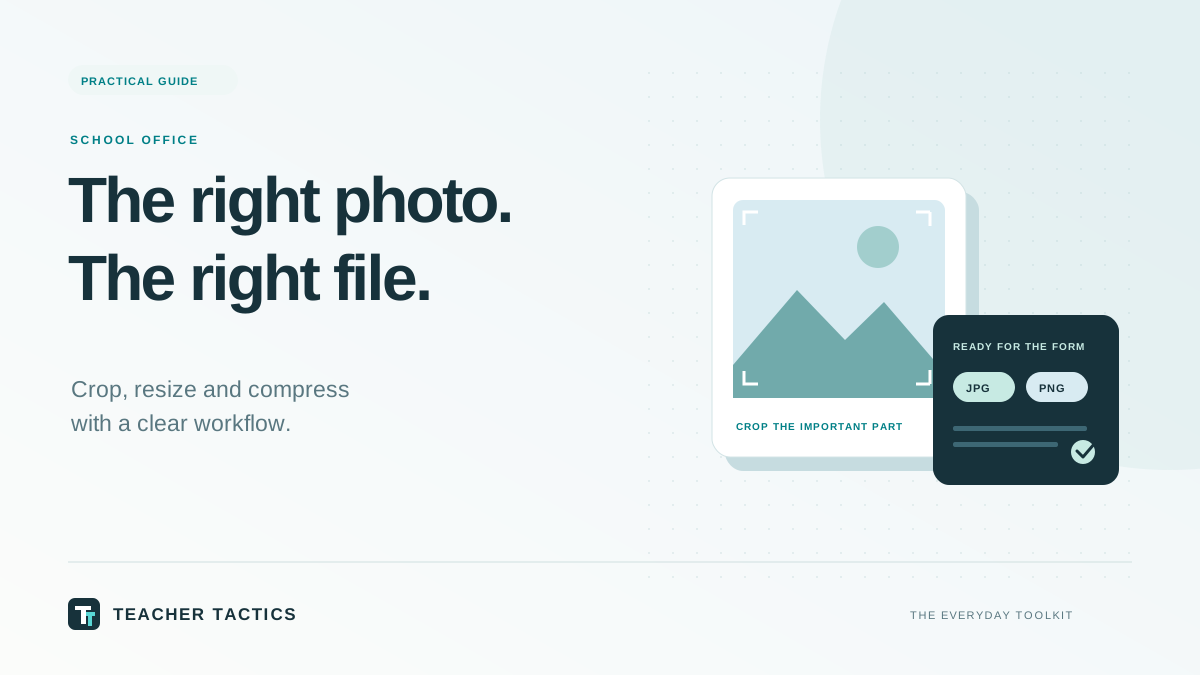
Crop decides which part of the photograph remains. Resize changes the number of pixels. If the required shape is 3:4, set that aspect ratio first, position the subject, then choose the output dimensions. Stretching a wide photo into a narrow rectangle distorts the face and is not a substitute for cropping.
For example, suppose the original is 1200 × 1600 pixels and the form requires 300 × 400. Both are 3:4. Resizing can preserve the full composition. A 1600 × 1200 landscape original has a different ratio: crop a portrait region that retains the required head and shoulders before resizing. Check the edges rather than assuming the centre crop is correct.
Look for the top of the head, chin, shoulders and required background margin. Rotate or correct orientation before you commit the crop. Do not use background removal, face alteration or invented details merely because an editor offers them; follow the actual form’s photograph instructions.
Choose a format for the content
JPG usually suits ordinary photographic images when a form accepts it. PNG retains sharp edges and transparency but can be much larger for a photograph. WebP can be efficient, although a form may not accept it. BMP is rarely helpful for a tight upload limit because its storage is typically much larger. Select from the formats the receiving form allows.
Never rename a .png file to .jpg and assume it has become a JPEG. The encoded contents still have the original format. Use an actual conversion and check the downloaded extension. Transparent areas also need attention: conversion to a format without transparency can introduce a background, so inspect the result on a light background.
If the document is a scanned certificate with tiny text, treat readability as the priority. A compression setting that is acceptable for a face photograph can make an official stamp or a small admission number unreadable. If necessary, reduce unused margins first rather than immediately pushing quality to its minimum.
Meet a byte limit without destroying the image
Dimensions, format and compression quality all affect file size. Start with the requested dimensions, then adjust quality. Reducing a 300 × 400 requirement to 100 × 133 merely to meet a size limit creates a different problem. If the form specifies a minimum size as well, make sure your result remains above it.
As an illustration, a form may say “below 50 KB”. That could be implemented as 50,000 bytes or approximately 51,200 bytes. A result of 49.9 KB shown by one application can sit too close to a boundary used by another. Leave reasonable headroom when possible, but do not sacrifice legibility to achieve an arbitrary tiny number.
If a size-targeting tool says the target could not be met, treat that as an unmet requirement. Try a permitted format, review dimensions and crop, or obtain a better source. Do not assume a failed target has been satisfied because a download button is available.
Use one controlled pass for a batch
For a class batch, first test the settings on a representative image. Include both a high-resolution source and a smaller or less sharp source in the test. Shared settings save time, but the same crop can cut off different students’ faces. Inspect the outputs rather than checking only the first one.
- Confirm that the receiving process permits the same specifications for the whole batch.
- Choose short, unambiguous filenames under the school’s naming convention.
- Prepare a small test set and inspect every result at its intended size.
- Process the remaining images using the validated settings.
- Check the number of outputs, actual file types, dimensions and any target-size warnings.
- Keep originals separately and remove unnecessary working copies from a shared device.
An image editor cannot tell you whether a photo belongs to the correct student. If you later match files to ID-card records, use explicit filenames or IDs and review ambiguous matches. Do not rely on selection order in a file picker.
Resolve the common “it still will not upload” problems
If the dimensions and size appear correct, check that you selected the new output rather than the original. Check that the form accepts the actual image format, not just the extension. Look for a minimum size, a different ratio, an expired session or an additional form-specific validation rule. The browser’s error message is often more useful than repeatedly compressing the file.
If the image looks blurred, return to the original. Increasing the pixel count of a small source does not recover facial detail. If the crop looks good in a large preview but poor at 300 × 400, view the actual output at normal size. Keep the head and required margins readable without relying on zoom.
The Teacher Tactics image tool processes selected files locally in the browser. That avoids sending the originals to this website, but downloads and clipboard copies remain on your device. Clear the tool and close the tab after using a shared computer. A browser-only workflow still needs sensible local file handling.